Turn Your Android Phone into a PC for Maximum Productivity
Turn Your Android Phone into a PC and boost work efficiency. Unlock new levels of productivity, manage tasks, and work seamlessly anywhere.
Are you tired of carrying a laptop everywhere or juggling multiple devices for work? What if your Android phone could handle all your desktop tasks? By transforming your phone into a computer,, you can boost productivity, multitask seamlessly, and manage your work anywhere turning your mobile into a powerful workstation.
Why Transform Your Android Phone?
Your Android phone can be more than just a device for calls and social media–it can become a versatile workstation. By Turn Your Android Phone into a PC you can boost productivity and handle tasks that usually require a laptop.
Here’s why transforming your Android is worth it:
Work on-the-go: Carry your office wherever you are and complete tasks without being tied to a desk.
Save money: Instead of investing in an expensive laptop, your phone can handle documents, spreadsheets, and even presentations.
Access desktop-like features: Enjoy multitasking, drag-and-drop functions, and app management similar to a traditional computer.
Enhance efficiency: Upgrade your workflow and manage projects faster by using your mobile as a mini-computer.
By taking this step, you unlock new levels of productivity, making your Android a powerful tool for both personal and professional tasks.
Tools You Need to Turn Your Android into a pc
Turn Your Android Phone into a PC-like workstation requires the right combination of apps, peripherals, and accessories. These tools not only make the setup smoother but also boost your productivity and allow you to work efficiently on-the-go.
Essential Apps
Samsung DeX: Ideal for Samsung users, this app converts your phone into a full desktop environment with multitasking capabilities, file management, and easy access to productivity apps.
Sentio Desktop: Provides a PC-style interface for Android devices, allowing you to open multiple windows, drag-and-drop files, and use keyboard shortcuts just like a computer.
Microsoft Remote Desktop: Access your Windows PC remotely from your Android, perfect for professionals who need desktop tools on-the-go.
TeamViewer: Enables remote control of other devices, making collaboration, troubleshooting, and meetings easier.
Others: Apps like Andronix or UserLAnd allow you to run Linux-based programs on your phone for advanced users.
EXPLORE: Lion APK
Recommended Peripherals
Keyboard & Mouse: A physical keyboard and mouse significantly improve navigation, typing speed, and overall efficiency, especially when handling documents or spreadsheets.
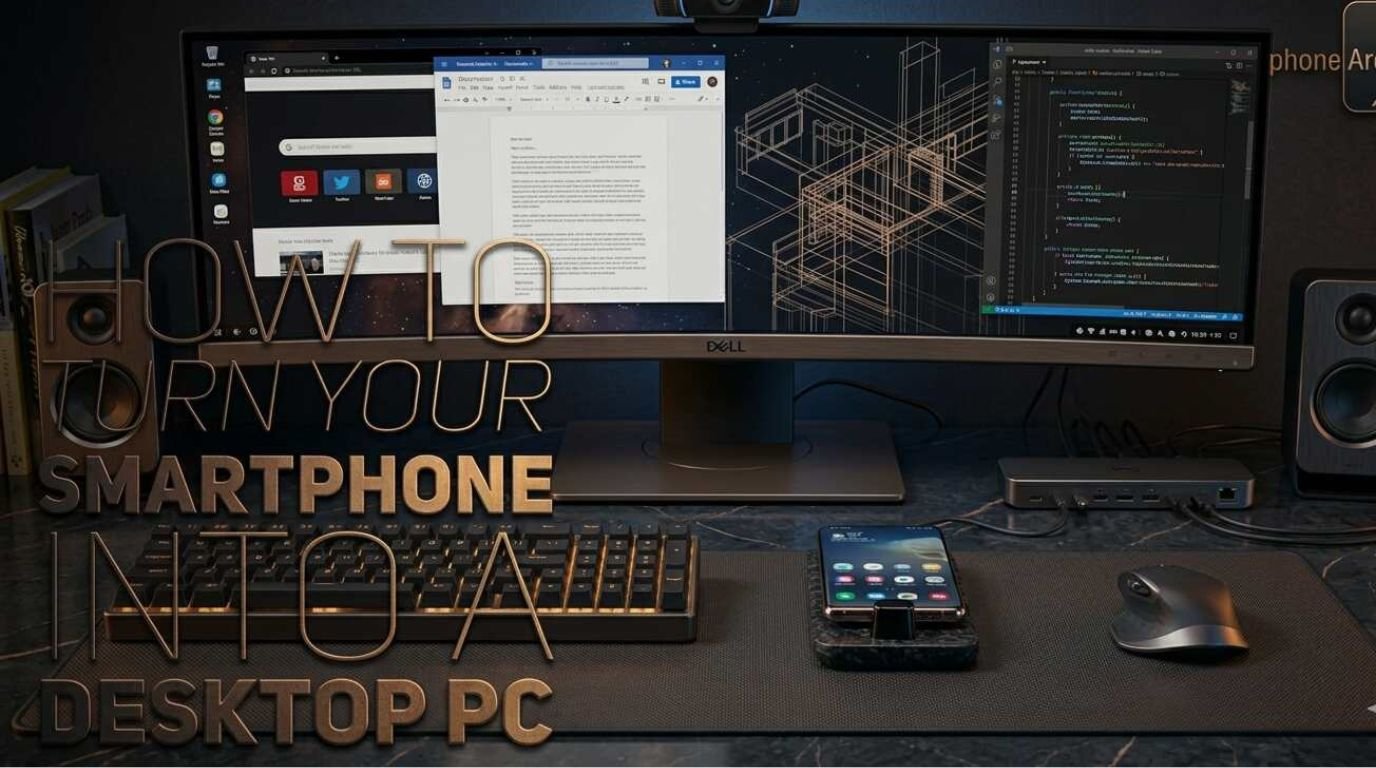
USB-C Hub: Connect multiple devices such as external monitors, flash drives, or Ethernet, transforming your phone into a versatile mini-PC.
External Monitor: Though optional, a monitor provides a true desktop experience with a larger display for multitasking, presentations, and enhanced visibility.Docking Station: Some setups include a dedicated dock to charge your phone and connect multiple peripherals simultaneously.
Helpful Accessories
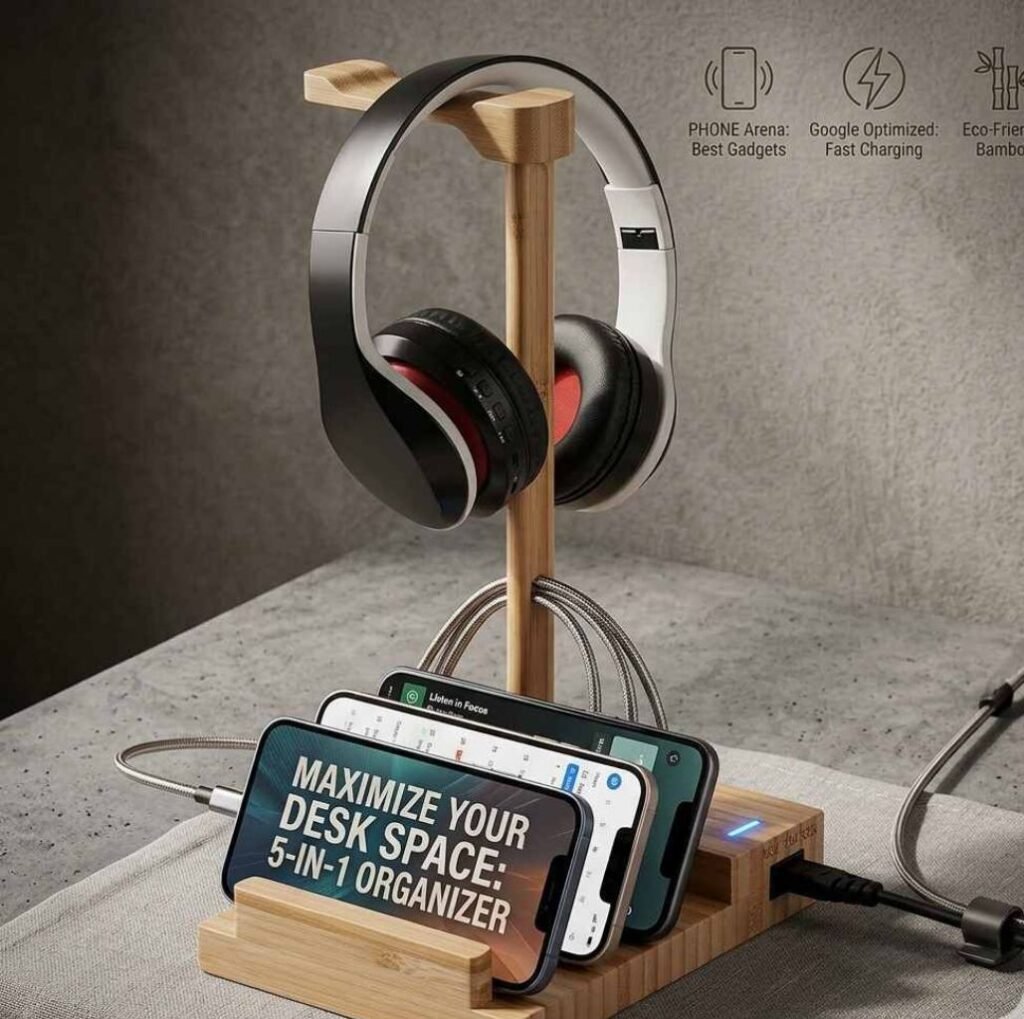
| Accessory | Purpose |
| Phone Stand | Holds your phone upright for better visibility while working |
| Portable Charger | Keeps your device powered for long work sessions without interruptions |
| Bluetooth Headset | Enables hands-free calls, meetings, and voice commands |
| External Storage | Expands your storage for documents, media, and apps |
By combining these apps, peripherals, and accessories, you can Turn Your Android Phone into a PC. This setup allows you to enhance efficiency, multitask effortlessly, and manage both personal and professional projects anywhere you go. With the right tools, your phone becomes more than a mobile device–it turns into a powerful computer in your pocket, ready to handle almost anything a traditional desktop can.
Step-by-Step Guide to Turn Your Android Phone into a PC
Turn Your Android Phone into a PC-like workstation is easier than you think. Follow these practical steps to convert your mobile into a productivity powerhouse:
Prepare Your Phone
Update your OS: Ensure your Android is running the latest version for compatibility with desktop apps.
Clear storage: Free up space for apps and temporary files to avoid lag.
Check battery: Fully charge your phone or keep a portable charger handy for uninterrupted work.
Install Desktop Apps
Download apps like Samsung DeX, Sentio Desktop, or Microsoft Remote Desktop depending on your device and needs.
Configure each app according to your workflow preferences to maximize efficiency.
Connect Peripherals
Attach a keyboard and mouse via Bluetooth or USB.
Use a USB-C hub to connect external storage, monitors, or other devices.
Place your phone on a stand for easy viewing.
Launch Desktop Mode
Open your chosen desktop app and switch to desktop interface.
Customize layout, window sizes, and shortcuts for smoother multitasking.
Explore features like drag-and-drop, split screens, and virtual desktops.
Optimize Your Workspace
Arrange apps and tools based on priority for a clutter-free experience.
Enable cloud storage and synchronization to access files from anywhere.
Use keyboard shortcuts and gestures to boost productivity further.
Test and Adjust
Run daily tasks to identify any limitations or adjustments needed.
Experiment with settings like screen resolution, mouse sensitivity, and app preferences to match a true desktop experience.
By following these steps, you can Turn Your Android Phone into a PC, allowing you to work efficiently, multitask effortlessly, and manage professional or personal projects without needing a traditional desktop or laptop.
Also read: Enhance Video Quality Using Wink App
Tips for Maximizing Productivity on Your Android PC Setup
Once your Android phone is transformed into a desktop-like workstation, these tips can help you enhance efficiency, multitask better, and get more done:
Use Multitasking Features
Split screens to run multiple apps simultaneously.
Switch between windows quickly using gestures or app shortcuts.
Leverage Cloud Storage
Store documents on Google Drive, OneDrive, or Dropbox.
Access files from anywhere and reduce dependence on internal storage.
Master Keyboard Shortcuts
Learn shortcuts for copy, paste, switch apps, and minimize/maximize windows.
Saves time and mimics a real desktop workflow.
Manage Notifications
Silence non-essential notifications while working.
Use focus mode to minimize distractions.
Organize Your Workspace
Keep frequently used apps and files on the home screen.
Use folders and tabs to avoid clutter.
Regularly Update Apps
Ensure desktop and productivity apps are always up to date.
Prevents crashes and ensures access to latest features.
Pros and Cons
| Pros | Cons |
| Work on-the-go: Carry your full workstation anywhere. | Battery drains faster: Extended use may require charging frequently. |
| Cost-effective: No need to buy an expensive laptop. | Limited app compatibility: Some desktop programs may not run. |
| Desktop-like experience: Multitask with multiple apps and windows. | Requires peripherals: Keyboard, mouse, or monitor may be needed for best results. |
| Portable and lightweight: Easy to set up anywhere, anytime. | |
| Boosts productivity: Complete tasks efficiently without being tied to a desk. |
Conclusion
Transforming your Android phone into a desktop-like computer is a game-changer for anyone looking to boost productivity and work efficiently on-the-go. By installing the right apps, connecting essential peripherals, and optimizing your workflow, you can unlock new levels of efficiency, multitask seamlessly, and manage both personal and professional projects without a traditional laptop. With this setup, your Android becomes more than just a phone–it turns into a powerful mini-computer that fits in your pocket, ready to handle almost anything.